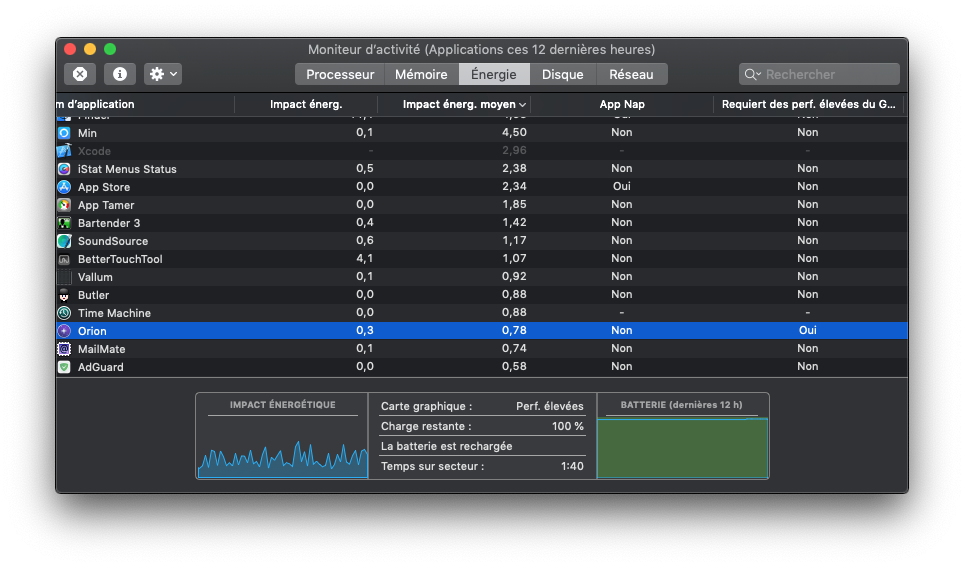
Vlad thanks for having a look!
Unfortunately, simply disabling this feature didn't change a thing. I've disabled it and restarted Orion and macOS still specify that Orion is using the high performance GPU.
However, I investigated this a bit and found that we need to add
<key>NSSupportsAutomaticGraphicsSwitching</key>
<true/>
To the application "Info.plist"
I've tested it by duplicating Orion.app and adding this to the "Info.plist" file and signed the duplicated Orion.app with my own developer signature.
With this, now when I start Orion with no opened website then it doesn't use the high performance GPU which it does with the latest version of Orion. However, when I open a website, then it switches to the high performance GPU, but then if I disable the "WebGL via Metal" feature and restart Orion and open a website, then it doesn't start the high performance GPU.
So, I think this is the way to go, to simply add the "NSSupportsAutomaticGraphicsSwitching" key to the "info.plist" file and disable the "WebGL via Metal". I've opened Safari and I see that the experimental features "WebGL 2.0" and "WebGPU" are disabled.
Thanks again for having a look and all the best!